

How to Monitor a Website's Traffic in 2026 (Step-by-Step Guide)
How to Monitor a Website's Traffic: The Short Answer
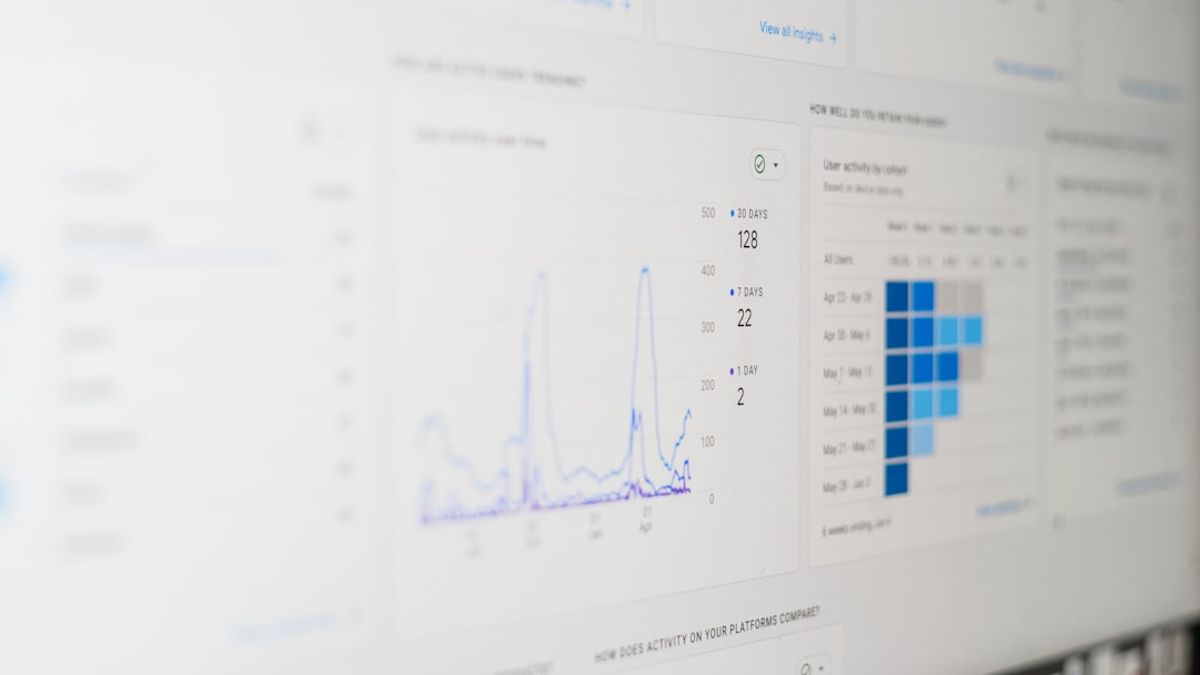
To monitor a website's traffic, install Google Analytics 4 on your site, connect Google Search Console, and log in to your GA4 dashboard to view sessions, traffic sources, and user behavior. Both tools are free, and together they give you a complete picture of where your visitors come from and what they do once they arrive.
Google Analytics 4 is the most widely used website traffic monitoring tool in 2026, making it the natural starting point for small business owners. It's free, it's backed by Google, and it connects directly to Search Console for keyword-level data. You can also check our guide on how to see website traffic for a complementary breakdown of the core monitoring concepts.
If you want to view traffic for a competitor's website or any external domain, third-party tools like Semrush and Ahrefs generate traffic estimates without needing access to that site's analytics account. That's how competitive analysis works.
One thing that's worth getting clear upfront: monitoring traffic without acting on the data won't move the needle. Knowing which pages drive sessions and which channels are growing (or shrinking) is what turns traffic data into real business results. This guide covers both how to monitor your own site and how to check the traffic of any website using free tools. At Evergreen AI, we've built an automated platform that turns exactly this kind of data into published content, without you needing to do it manually.
What You Need Before You Start Monitoring Traffic
Before you can start reading traffic reports, a few things need to be in place.
First, you'll need a Google account. The same Gmail account works for both Google Analytics 4 and Google Search Console, so there's no need to create separate logins for each platform.
To track your own site's traffic in GA4, you must add a JavaScript tracking snippet (or a GA4 tag via Google Tag Manager) to every page of your website. GA4 only starts collecting data from the moment that code is installed. It can't backfill historical traffic from before the setup date, so the sooner you install it, the better. If you're using a website builder like Shopify, Wix, or WordPress, you can typically connect GA4 through a built-in integration or plugin rather than touching any code directly. Check our Integrations page to see how Evergreen AI connects with your CMS and analytics stack.
Google Search Console requires you to verify domain ownership before it starts showing data. You can do this via a DNS TXT record, an HTML file upload, or through Google Analytics itself if GA4 is already connected to your site.
If you want to check a competitor's traffic or look up any external website, you don't need installation access at all. Third-party tools use their own crawl data and clickstream modeling to estimate traffic for any domain. Our guide on free website traffic checker criteria walks through what to look for when evaluating these tools.
In short: before monitoring traffic, you need a Google account, a GA4 tracking code installed on your site, and your domain verified in Google Search Console.
How to Monitor Website Traffic: Step-by-Step Methods
Step 1: Set Up Google Analytics 4
Go to analytics.google.com, sign in with your Google account, and create a new GA4 property for your website. Copy the Measurement ID that's generated, then add the GA4 tracking tag to your site's header. You can do this through Google Tag Manager (recommended if you plan to add other tags later), your CMS's native GA4 plugin, or by pasting the code directly into your site's <head> section.
Step 2: Verify That Data Is Flowing
After installing the tag, don't just assume it worked. Open the GA4 DebugView or the Realtime report and visit your website in another browser tab. If your visit shows up, the tag is firing correctly. Full data takes 24 to 48 hours to populate in standard reports, but the Realtime view confirms it's working immediately.
Step 3: Read Your GA4 Dashboard
Navigate to Reports > Acquisition > Traffic Acquisition. This report breaks your sessions down by channel: Organic Search, Direct, Referral, Paid Search, and Social. This is your most important starting point because it tells you exactly where your visitors are coming from. Google Analytics 4 replaced Universal Analytics in July 2023 and uses an event-based data model, so if you're used to the old interface, you'll notice that "Bounce Rate" is now replaced by "Engagement Rate." The terminology shift is important so you don't misread your dashboards.
Step 4: Connect Google Search Console
Go to search.google.com/search-console, verify your domain, then link it to your GA4 property under Admin > Property Settings > Search Console Links. Once linked, you'll unlock keyword-level data directly inside GA4, which is something you can't get from GA4 alone. Our guide on how to find backlinks in Google Search Console also covers additional ways to use GSC for SEO insights.
Step 5: Review Search Console's Performance Report
Inside Search Console, the Performance tab shows your total clicks, impressions, average click-through rate, and average ranking position for every keyword Google has indexed your site for. This is essential for understanding your organic traffic sources at the keyword level. You can filter by page, country, device, or search type to narrow the data down.
Step 6: Check a Competitor's Traffic Using Third-Party Tools
Enter any domain into the Semrush Traffic Analytics tool or the Ahrefs Traffic Checker to get estimated monthly visits, top traffic pages, traffic by country, and a keyword breakdown, all without needing access to that site's GA4 account. This is how you benchmark your own site against competitors and spot content gaps. Discussions on forums like Reddit's webdev community consistently point to these two as the most trusted options for competitive traffic analysis.
To check a competitor's website traffic, entering their domain into Semrush or Ahrefs is the fastest method and returns estimated monthly visits alongside their top-performing pages.
Step 7: Use SE Ranking or SpyFu as Budget-Friendly Alternatives
If a full Semrush or Ahrefs subscription isn't in the budget right now, SE Ranking's website traffic checker and SpyFu both offer limited free lookups for competitor traffic estimates. They're useful for small business owners doing occasional competitive research rather than daily monitoring. For a full breakdown of free monitoring options, see our guide on how to view traffic for any website using free tools.
Step 8: Track the Five Metrics That Matter Most
Most small business owners don't need to track everything GA4 offers. Focus on these five:
- Sessions (total visits to your site)
- Organic Traffic (visits arriving from search engines)
- Engagement Rate (how many sessions include meaningful interaction, the GA4 replacement for Bounce Rate)
- Traffic Sources breakdown (which channels are growing and which are declining)
- Top Landing Pages (which individual pages drive the most sessions)
These five data points answer most actionable SEO questions. You can pair this with a website SEO audit to understand why certain pages perform the way they do, or explore AI-powered SEO tools that automate the interpretation layer entirely.
Step 9: Set Up Monthly Reporting
Logging in every day to check traffic numbers isn't a sustainable habit for a busy small business owner. Instead, use GA4's built-in reporting features or connect Google Looker Studio (free) to build a recurring traffic dashboard. Set it to send a monthly email summary so you can spot trends, traffic drops, or growth without making it a daily task. Always use the date comparison feature in GA4 when reviewing reports: comparing month-over-month or year-over-year gives you context that raw numbers alone don't provide.
Traffic Monitoring Tips and What to Do With the Data
Collecting traffic data is step one. Knowing what to do with it is where most small businesses fall short.
If you see a traffic drop of more than 20% month-over-month in GA4, that's a signal to investigate before drawing conclusions. The most common causes are a Google algorithm update, a broken tracking tag (which makes it look like traffic dropped when it actually didn't), or a sharp decline in a single channel. Check each channel individually in the Traffic Acquisition report to isolate the source of the drop.
Organic search traffic is worth prioritizing above most other channels because it compounds over time. A blog post that earns strong rankings in 2026 can still drive consistent traffic in 2028 without any additional ad spend. That compounding effect is why SEO is one of the highest-return channels for small businesses with limited marketing budgets.
If more than 50% of your traffic shows up as "Direct" in GA4, that's often a sign of a UTM tagging problem or missing tracking code on some pages, not that half your visitors are typing your URL directly into their browser. Auditing your tracking setup is the fix.
Segment your traffic by landing page under Reports > Engagement > Landing Page to see which individual pages are doing the heavy lifting. These are the pages worth prioritizing for conversion optimization and content updates.
Checking competitor traffic monthly using Semrush or Ahrefs is one of the best ways to find content opportunities. If a competitor's blog post is generating significant estimated traffic for a keyword you don't rank for yet, that's a direct signal to create content targeting that topic.
The challenge for most small business owners isn't knowing what to monitor. It's consistently acting on what the data shows. Manually interpreting traffic reports and then deciding what content to create next is time-consuming, and it's where many businesses lose ground to competitors who publish regularly. Tools like Evergreen AI are built specifically for this gap: the platform tracks competitor content gaps, generates SEO and AEO-ready articles, and publishes directly to your CMS without requiring you to interpret traffic reports yourself.
For a flat $149/month, Evergreen AI replaces the workflow of monitoring, analyzing, and acting on traffic data with a fully automated pipeline. You can also explore our breakdown of the best SEO automation tools for small businesses to see how automation fits into a broader organic growth strategy. And if you're planning long-term, our autonomous SEO guide covers how small businesses can build compounding traffic without manual effort.
A traffic drop of more than 20% month-over-month in GA4 is a signal to check for algorithm updates, broken tracking tags, or channel-level losses before drawing any conclusions about what changed.
Frequently Asked Questions: Monitoring Website Traffic
Q: How can I check the traffic of a website?
To check the traffic of your own website, install Google Analytics 4 and review the Traffic Acquisition report under Reports > Acquisition. To check any other website's traffic, including competitors, enter the domain into a third-party tool like Semrush Traffic Analytics, Ahrefs Traffic Checker, or SE Ranking's website traffic checker. These tools estimate monthly visits, top pages, and traffic sources without requiring access to the site's analytics account.
Q: How to check if a website has a lot of traffic?
Enter the website's domain into Semrush's Traffic Analytics or the Ahrefs Traffic Checker. Both tools display estimated monthly visits alongside industry benchmarks, which helps you judge whether a site's traffic is high or low for its niche. A site with over 10,000 monthly organic visits is generally considered well-trafficked for a small business, while major industry sites often attract hundreds of thousands of monthly visits.
Q: Which tool is commonly used to analyze website traffic?
Google Analytics 4 is the most widely used tool to analyze website traffic in 2026. It's free, integrates directly with Google Search Console, and provides detailed data on sessions, users, traffic sources, landing pages, and conversions. For competitive analysis, Semrush and Ahrefs are the industry-standard paid tools, while SE Ranking and SpyFu offer more affordable alternatives for small businesses. Our free website traffic checker criteria guide can help you choose the right option for your needs.
Q: What is a free tool for tracking website traffic?
Google Analytics 4 is the best free tool for tracking your own website's traffic. It has no visit limits and provides complete session, channel, and behavior data. For checking traffic on any website without ownership access, Ahrefs offers a free Traffic Checker with a limited number of domain lookups per day. Google Search Console is also free and provides keyword-level click and impression data directly from Google's search index. If you want to go beyond traffic data into page-level SEO performance, our AEO Page Checker gives you visibility into how individual pages perform across both Google and AI search engines.