

Advanced mode: write exactly the article you have in mind
Set the keyword, title, article type, length and instructions in one place. Give us only a title and we pick the search it should rank for. Then watch it research and write, live.

Evergreen picks topics on its own. When you already know what you want, Advanced mode lets you set every part of the brief yourself, in one form, and still get the same live research and writing view as always.
What you can set
- Keyword: used exactly as you type it.
- Title: used word for word on the finished article. Leave it blank and we write one.
- Article type: pick one of 14 formats, from how-to guides to comparisons, or leave it on Auto. The picker shows each type as a card with its word range.
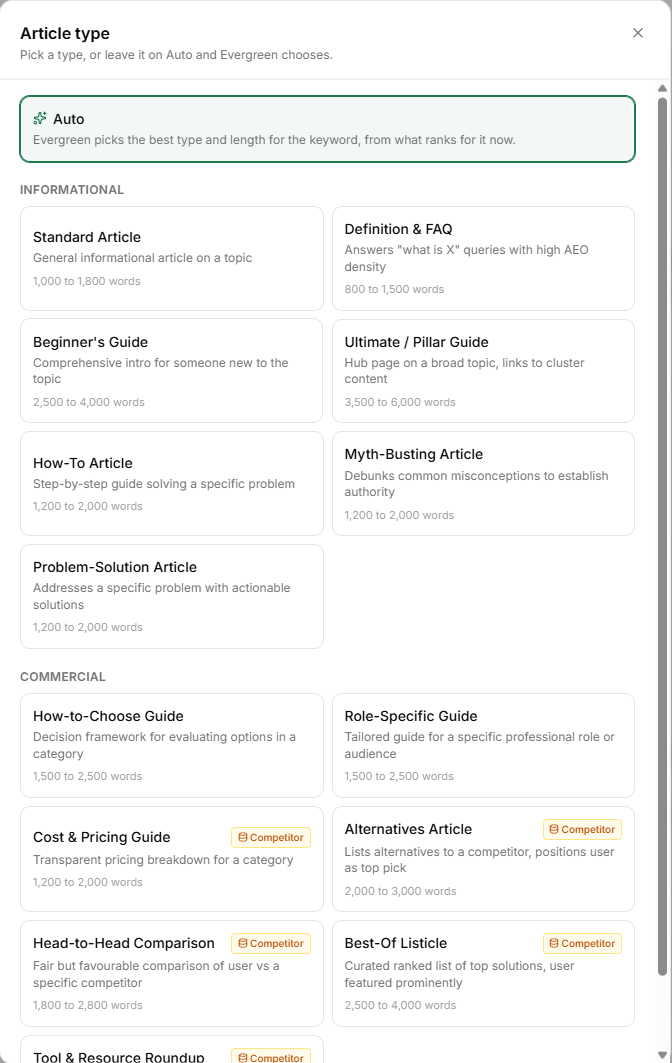
- Length: an exact word count within the range of the type you chose, or Auto.
- Instructions: anything the writer should know, such as an angle, a point to make or a product to mention. Your voice, rules and topics to avoid still apply.
You need a keyword or a title. Everything else is optional.
Only have a title? We find the keyword
Leave the keyword blank and Evergreen proposes the searches your title would answer best, checks how often each one is searched, and targets the strongest fit among the best-fitting ones. The live view tells you what it chose, for example "We are targeting X, also covering Y".
How to use it
- Open Write an article and switch on Advanced mode under the topic box.
- Fill in a keyword, a title, or both.
- Press Write it and watch the research, outline and draft come together live.
Good to know
- Comparison types with Name competitors switched off compare approaches instead of naming brands.
- Want to describe the article in your own words? Use the quick topic box instead.
Try it on your own site
Available on subscription plans.